
In this section you will learn how to use emojis and attachments in the Tineri CMS Chat
Any conversation screen will look like the follows: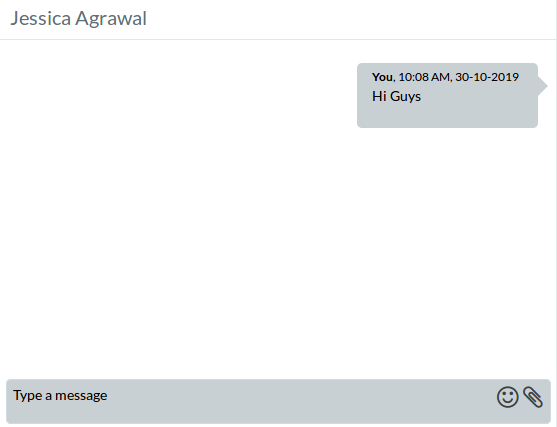
The user has the flexibility to use any plain text in the messages which he sends along with emoticons (emojis)
To use the emojis click on the smiling face inside the message text box, this will load a pop up of which will list emojis in different sections along with the most recent used emojis by the user as shown below:
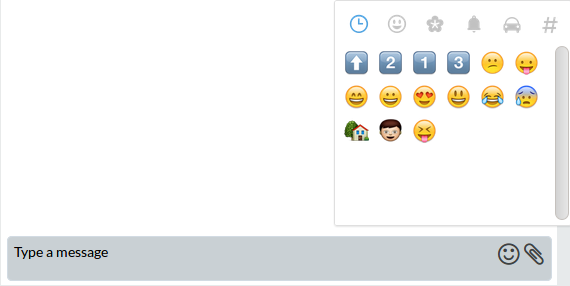
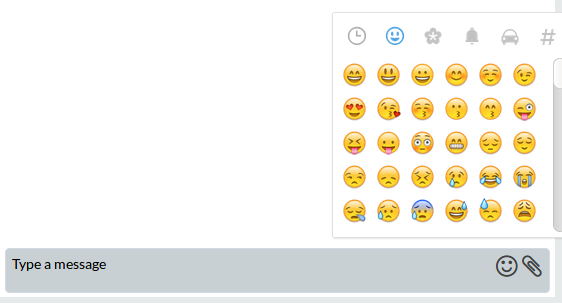
Clicking on the emojis will add them to the message text box.
The user can also send documents/images to the receivers. Clicking on the attachment icon (paperclip) will open the following form:
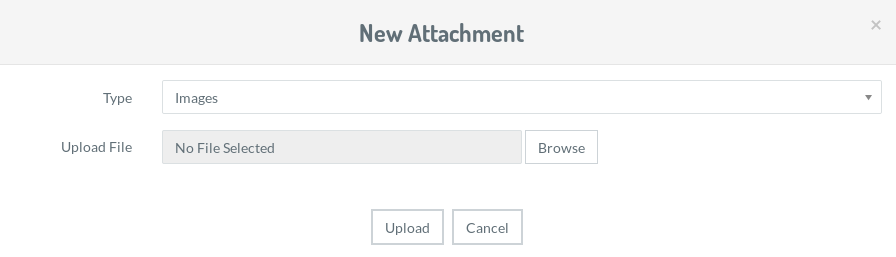
Type
The user can select the type of file which he wants to send. The only difference between images and documents type is that the images will directly be previewed in the chat.
Upload File
This is a file upload field to be used to browse the files in your system for selection.
After the Type and Upload File is selected, clicking on upload will send the file to the receiver(s) and the chat screen will look like as follows:
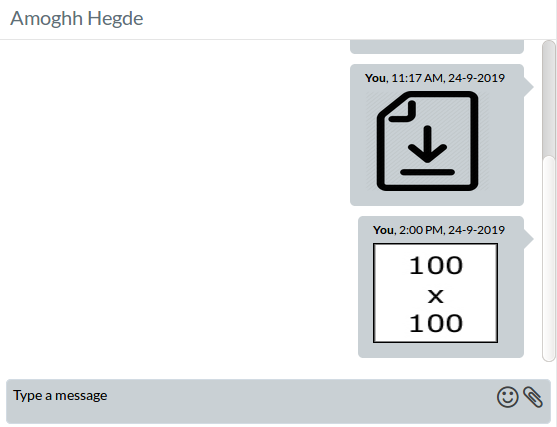
Clicking on the Image will display it as a full-screen preview, and clicking on a Document will trigger a download to your system. All types of documents are supported.